Accessing the Updated GGMC Member Site
For GGMC Members
PREREQUISITE
You must have an existing GGMC email address to access the Members Site (your email address must end in @ggmc.org).
Email addresses that do not end in @ggmc.org, such as yourname@gmail.com or yourname@me.com, will not work.
If you are unsure of your GGMC email address, check with Randy, Seth, or Larry before proceeding.
Bookmark this page for future reference.
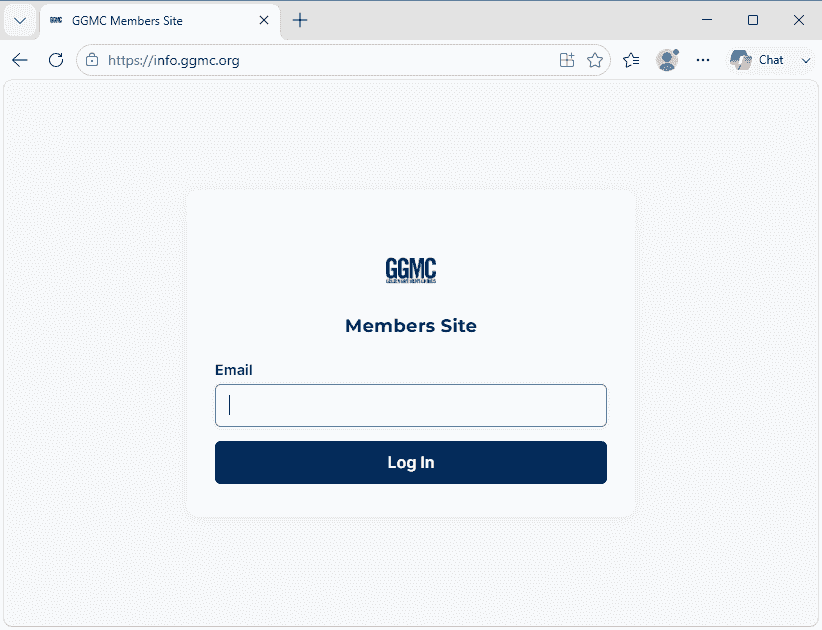
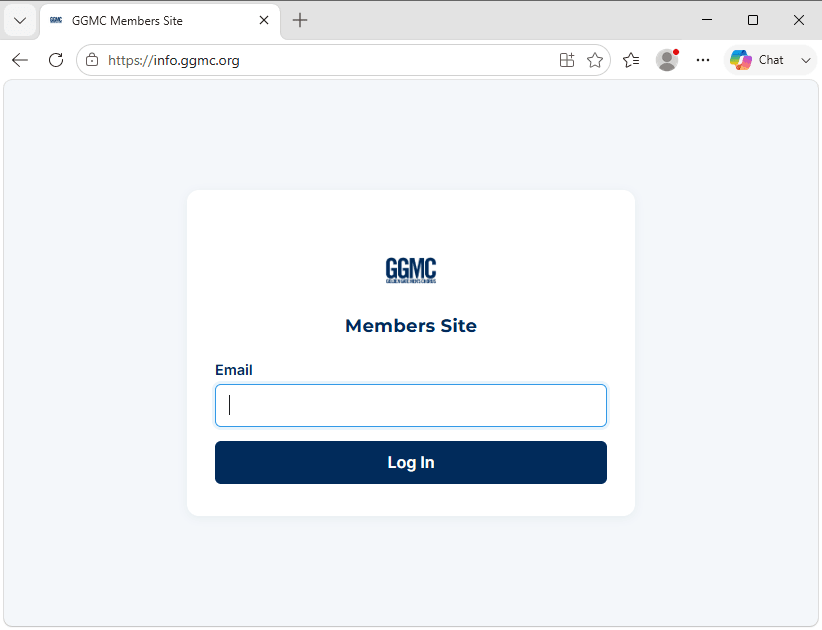
1. Go to info.ggmc.org
Click here, or open your favorite web browser and type info.ggmc.org in the address bar.
Continue on to step 2.
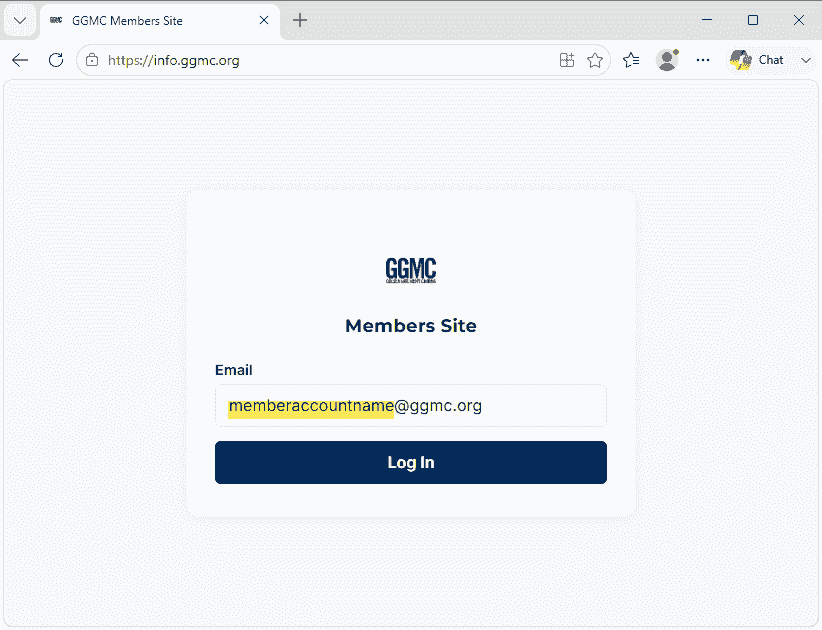
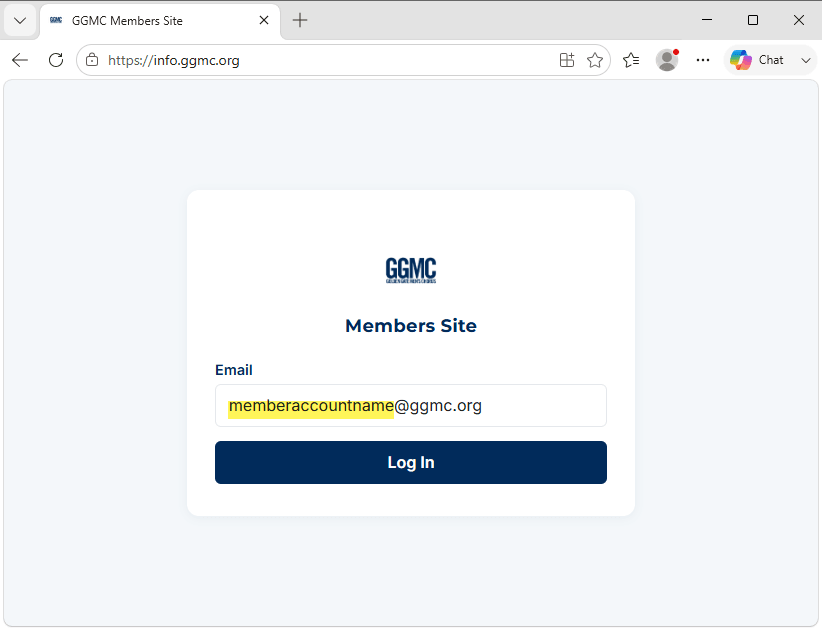
2. Enter your GGMC email address
Remember: You must enter your GGMC email address in the Email field. Personal email addresses are not accepted and will not work.
Once you have entered your GGMC email address, click Log In.
Continue on to step 3.
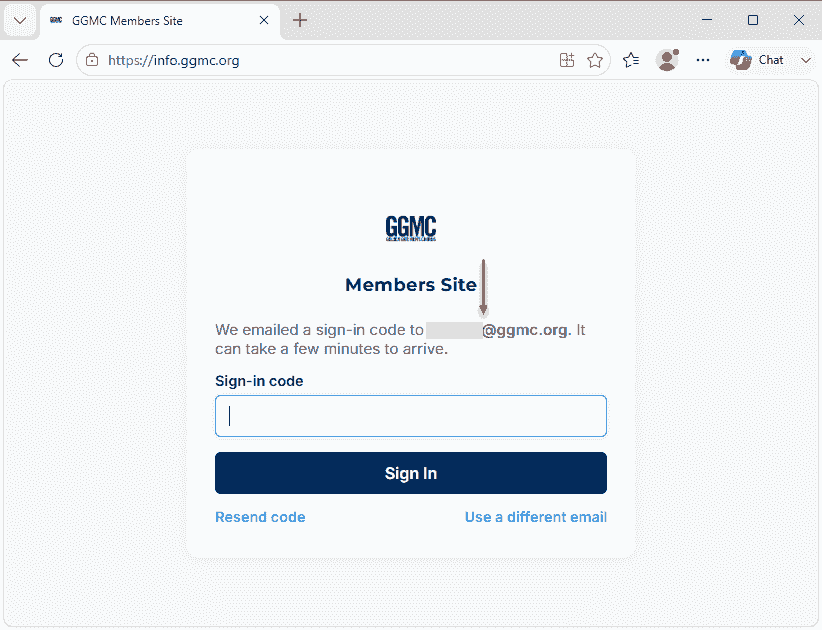
3. Confirm That a Sign-In Code was Sent
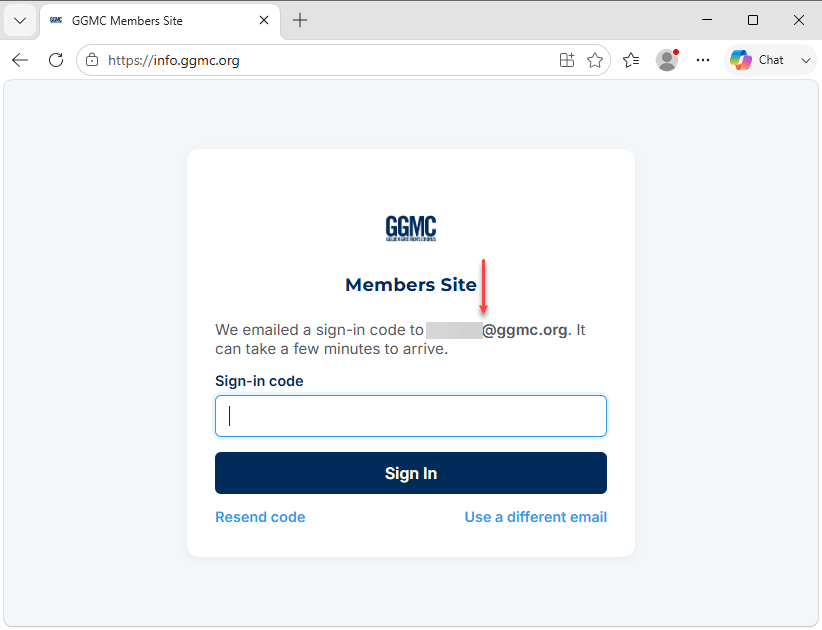
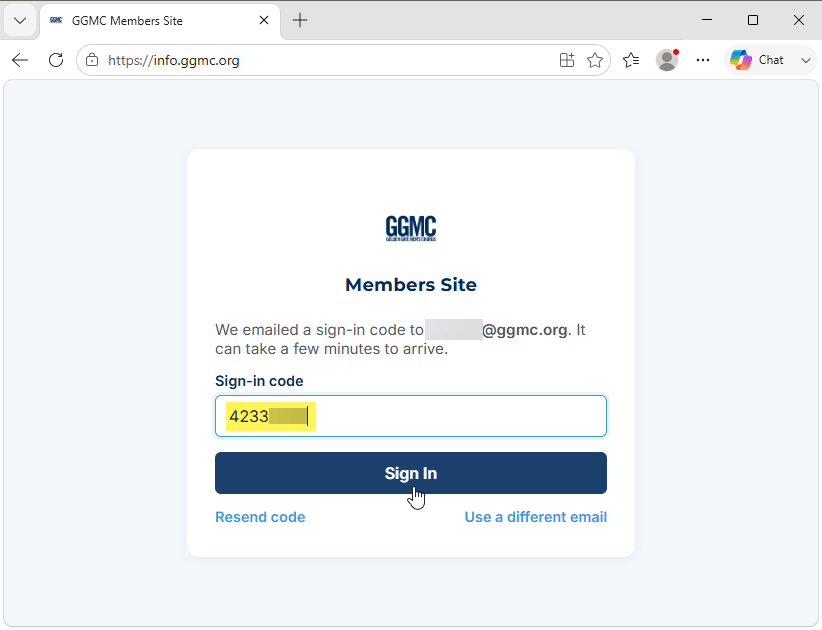
The site will display a message similar to:
"We emailed a sign-in code to yourname@ggmc.org. It can take a few minutes to arrive."
You will also see an empty Sign-in code field.
Leave the GGMC Members Site page with the empty Sign-in code field open. Continue on to step 4 to retrieve your code.
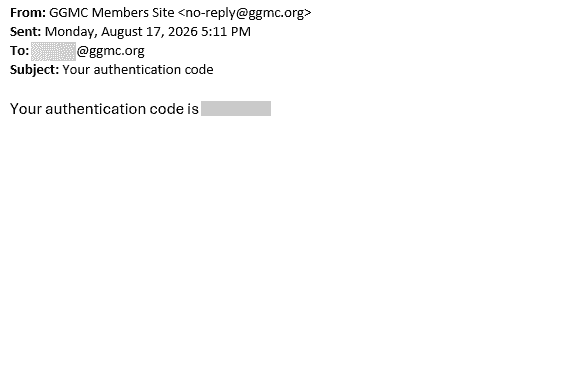
4. Check Your Email for the Sign-In Code
Open the email application you normally use to read GGMC email, such as Outlook, Gmail, Apple Mail, etc.
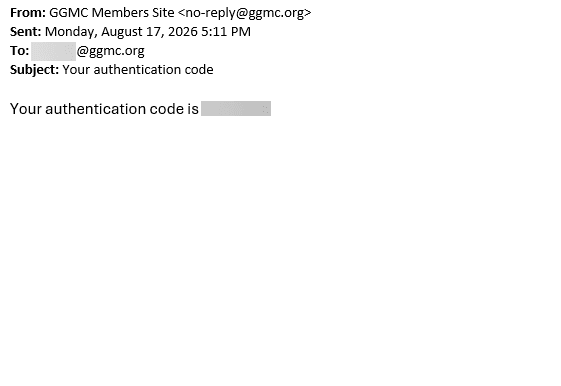
Look for an email from GGMC Members Site with the subject:
Your authentication code
The message may take a few minutes to arrive. If you don't see it in your Inbox, check your Spam or Junk folder.
Copy the authentication code from the email, then return to the GGMC Members Site page with the empty Sign-in code field.
Continue to step 5.
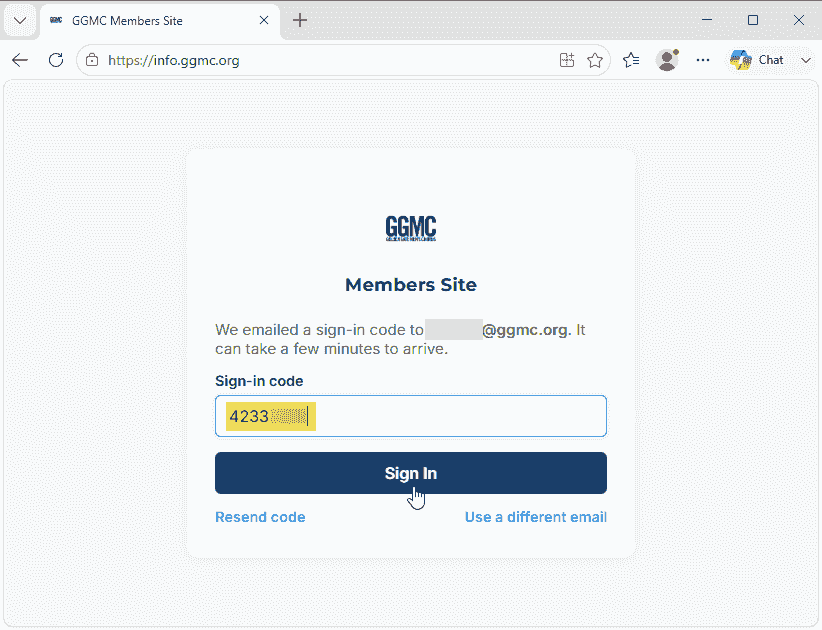
5. Enter the Sign-in code
Enter the authentication code sent to your @ggmc.org email address in the Sign-in code field.
Click Sign In.
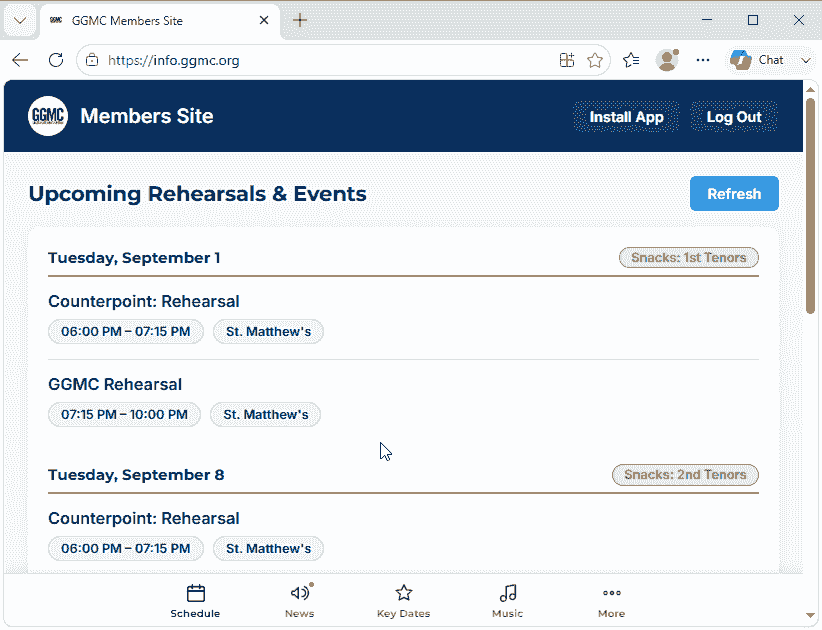
Done
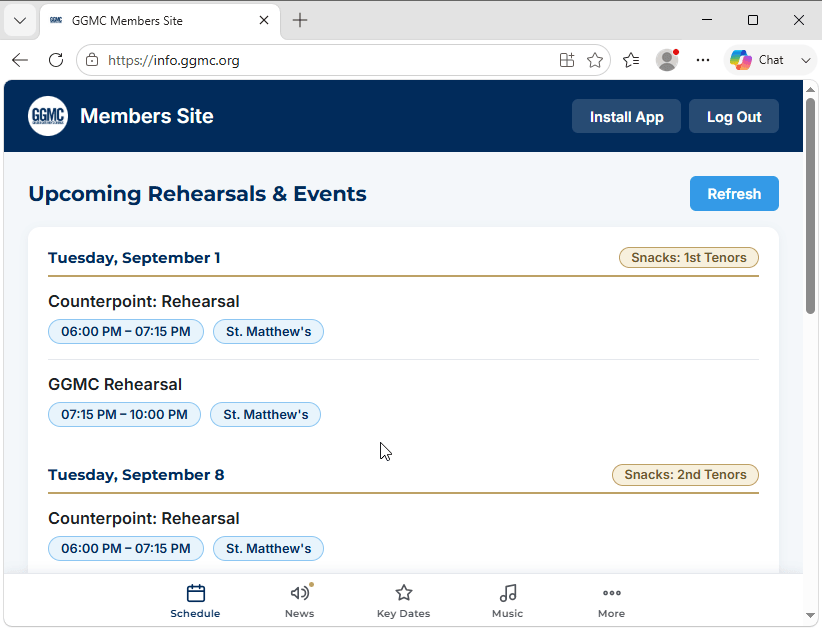
You should now be logged in to the GGMC member site.
In most cases, you should remain signed in and will not need to repeat this process each time you visit the site.
You may be asked to sign in again if you clear your browser history, cookies, or website data; use a different browser or device; or if your previous login has expired.
If you are asked to sign in again, simply repeat Steps 1–5 above.